
troubleshooting:nvidia_driver:nvidia_forgot_settings
This is an old revision of the document!
Table of Contents
Nvidia Driver Freak-Out
Sometimes the Nvidia driver just freaks out, and a variety of settings will change in the driver.
Scenarios when I've seen this happen:
- Randomly after power loss.
- You remotely log in using RDP (Windows Remote Desktop) and that creates a separate session. Once you log out of that session, then the nvidia driver may misbehave.
Symptoms:
- If the projectors are on, they will go to black and then come back several times.
- The screens in the CAVE are re-ordered, or resized. The heights of all the screen spaces should be the same (currently 1050 pixels).
- If getReal3DForUnity reports errors when launching such as “multiple screens”.
- If the Vizard frame rate on simple demos are less than 60fps (if they are like 45fps).
Procedure to Fix:
After experimentation and reviewing an old working system with no errors, check these things:
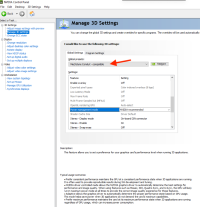
- Check that the Mechdyne profile is selected when viewing the 3D Settings > Manage 3D Settings Page in the Nvidia Driver Application.
- On the Display > Setup Multiple Displays page, check if the ordering of the screens is: (left wall, center wall, right wall, floor left, floor right). If not change it to match. You can right-click screens in the drawing and click Identify to figure out which screen is which. You can right-click to make whichever screen the primary. If the center screen is primary, the center screen pixel position becomes (0,0) and the screen to the left will have a negative pixel position for the X, (ie. -1400,0). Note: If these get changed to something else or the primary screen is changed, then the configurations in getReal3DForUnity and also CAVELib will need to be udpated.
- 3. On the Display > Change Resolution page, check that all resolutions are custom in some way. The mosaic displays will say mosaic. The rest of the displays should be custom 1400×1050. If that resolution is not present, then Nvidia lost that setting and a new custom resolution has to be created using the button on that screen.
- When all the resolutions are checked, go back to the Display > Setup Multiple Displays again. Double-check that all of the screen are lined up and not slightly offset vertically. The driver allows you to offset the pixels very slightly, so just make sure that each screen's pixel space begins at some (X, 0) position. Mostly this is a visual check of the little drawing, but you can click and drag the screens in the drawing to see the value of the pixel position.
- Now check that all of the displays are synchronizing. After those changes, they are probably not any more. Go to Workstation > Synchronize Displays. Click “The timing server is…” On this system. You can click any one of the displays. Whatever is chosen, make sure that the refresh rate on all of them say the exact same value. They tend to be slightly less than 60Hz. Make sure all of the check marks appear to be selected.

troubleshooting/nvidia_driver/nvidia_forgot_settings.1663778396.txt.gz · Last modified: by apenngrace